
How many hours can you sink into the wrong 3D tool before you admit it's the wrong tool? A mesh that looks great in a pitch deck might be useless to a machinist. A precise CAD assembly might be awkward to rig for an animation.
The best 3D modeling tools earn their place by doing a particular job well, not by packing the most buttons into a toolbar. For a startup, that job might be making game assets, testing an enclosure, laying out a shop, or sending a part to a fabricator. Those are different buying decisions.
This shortlist groups those needs across polygon modelling, sculpting-adjacent pipelines, parametric CAD and browser-based work. You'll find licence types, platform fit, practical limits and handover advice, with a New Zealand and Australian lens. Exact local prices aren't available for every product, so paid tiers are named rather than dressed up with guessed dollar figures.
For building projects, keep visual modelling separate from information management. The HireArchitects guide to BIM modeling is useful context for that distinction.
Start with the deliverable: Choose the file your colleague, client or fabricator needs. Then choose the application that can produce it without a rescue mission.
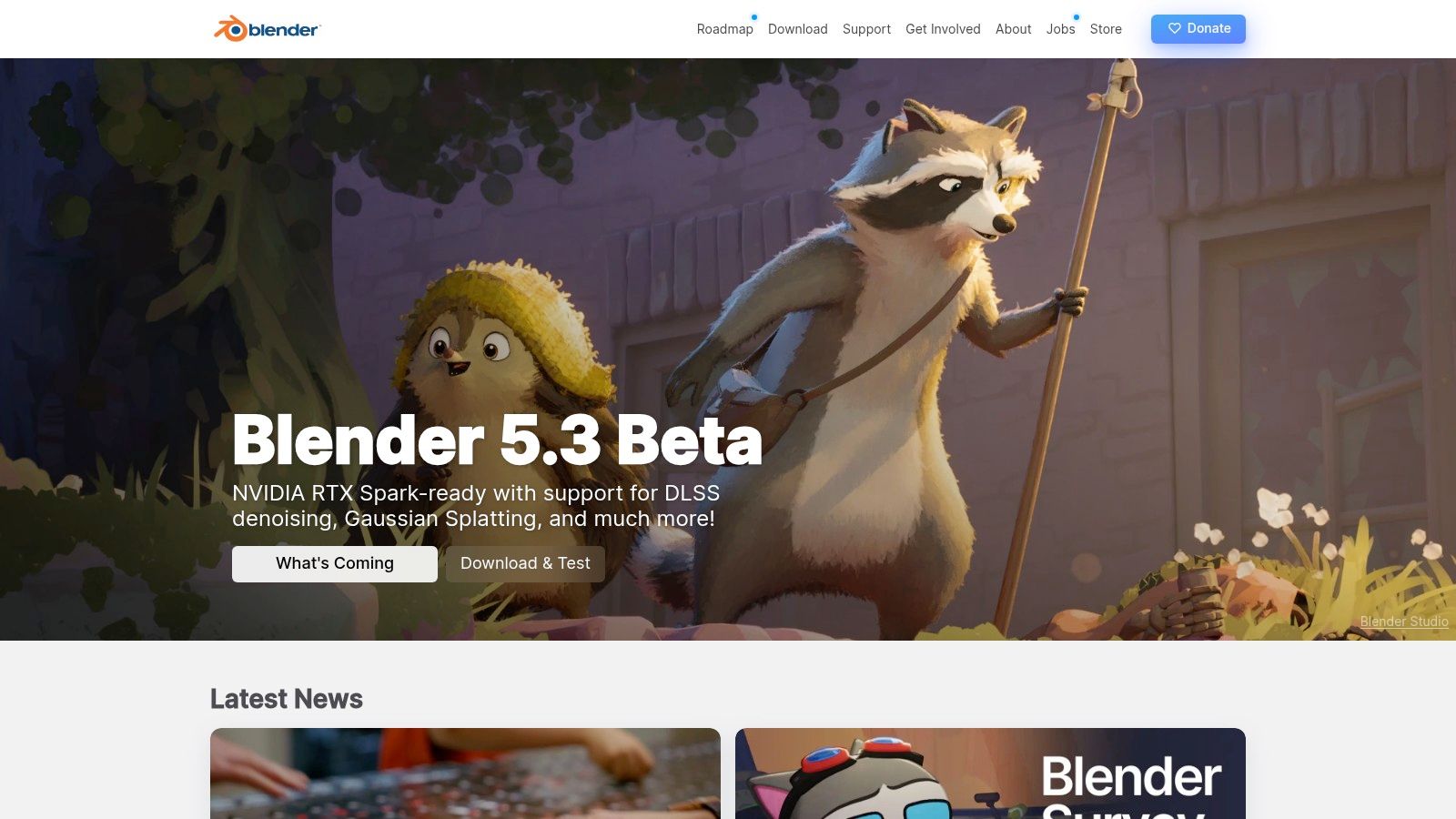
Best for free polygon modelling, sculpting and general 3D production.
Blender is the sensible starting point when you need broad creative tools without a licence bill. Blender's feature overview covers polygon modelling, sculpting, texture painting, animation, simulation, compositing and video editing, plus Cycles rendering and Python scripting. It runs on Windows, macOS and Linux.
That breadth suits a small team making product visuals, game props and launch animations. You can model, unwrap UVs, paint textures and render without passing the scene through several paid applications. The catch is learning which parts you need and ignoring the rest.
Under Blender's licence terms, commercial use is allowed and users retain ownership of the artwork they create. Check purchased assets and add-ons separately, though. Their terms aren't automatically the same as Blender's.
For game assets, test an export into your engine early. Check scale, normals, materials and object origins before you build a whole asset library. A clean render won't reveal a broken handover.
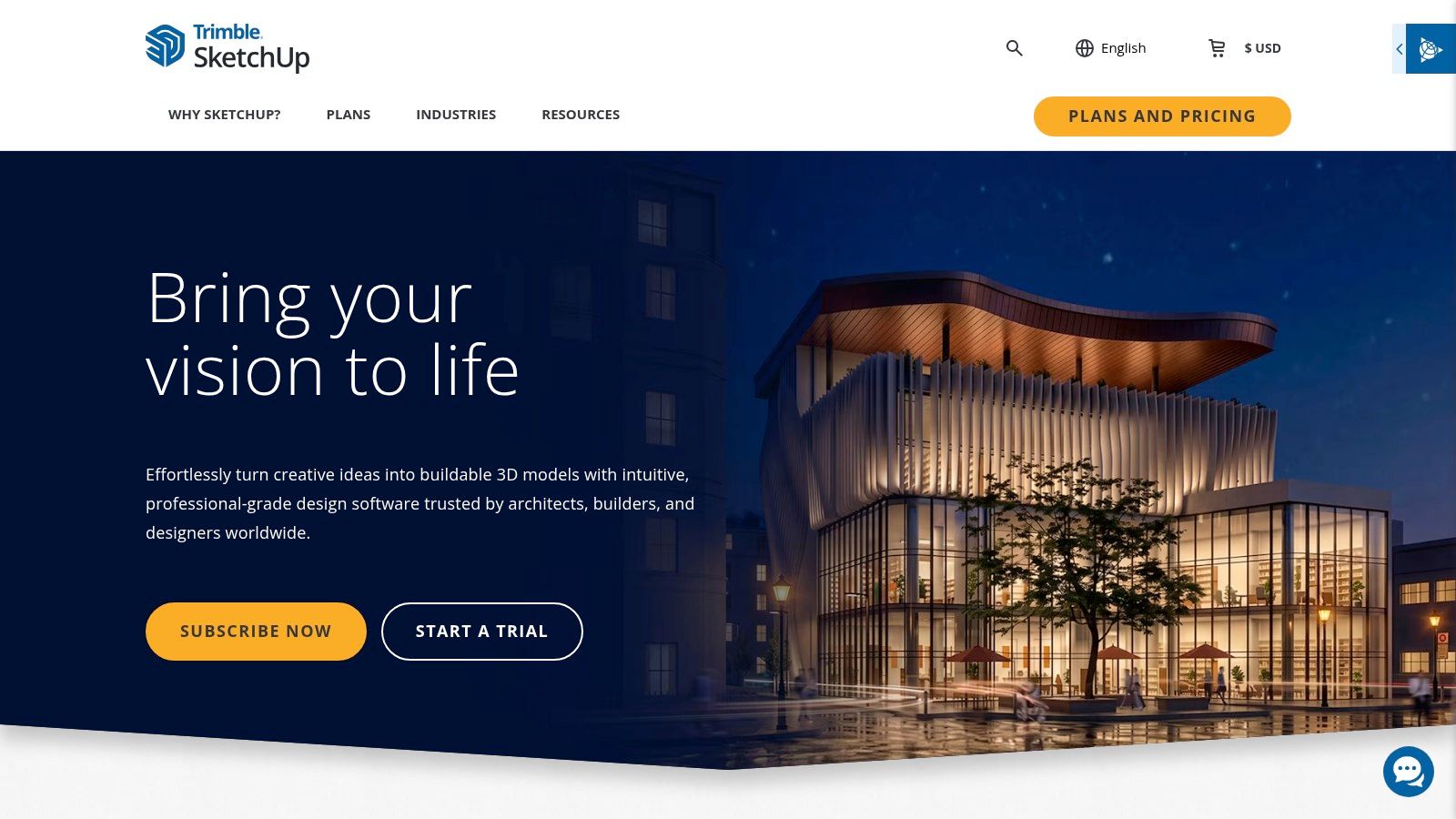
A shop fit-out needs walls, openings and clear spatial decisions before it needs perfect reflections. SketchUp is a strong choice for quick architectural concepts, interiors and layouts, especially when the person modelling isn't a full-time 3D artist.
SketchUp offers web, iPad and desktop workflows across its plans. Its 3D Warehouse supplies reusable models, while desktop extensions let you add specialist tools. Pro and higher plans include LayOut for drawing documentation; Studio's advanced features are limited to Windows.
Push-pull modelling makes basic forms approachable. The trouble starts when loose edges and faces become a tangled model that nobody wants to edit. Use groups and components from the start, and give repeated objects sensible names.
Professional desktop modelling needs a paid plan. Check the actual plan against your device, required extensions and drawing output, rather than assuming that access to SketchUp means access to every feature.
For NZ construction teams, there's another distinction. A review of BIM adoption in New Zealand reports that BIM use on construction projects rose from 34% in 2014 to 70% in 2021. A spatial concept is useful, but it doesn't automatically provide the coordinated component information a project team expects.
Choose SketchUp for communicating space quickly. Choose engineering CAD instead when tight mechanical constraints and linked dimensions drive the design.
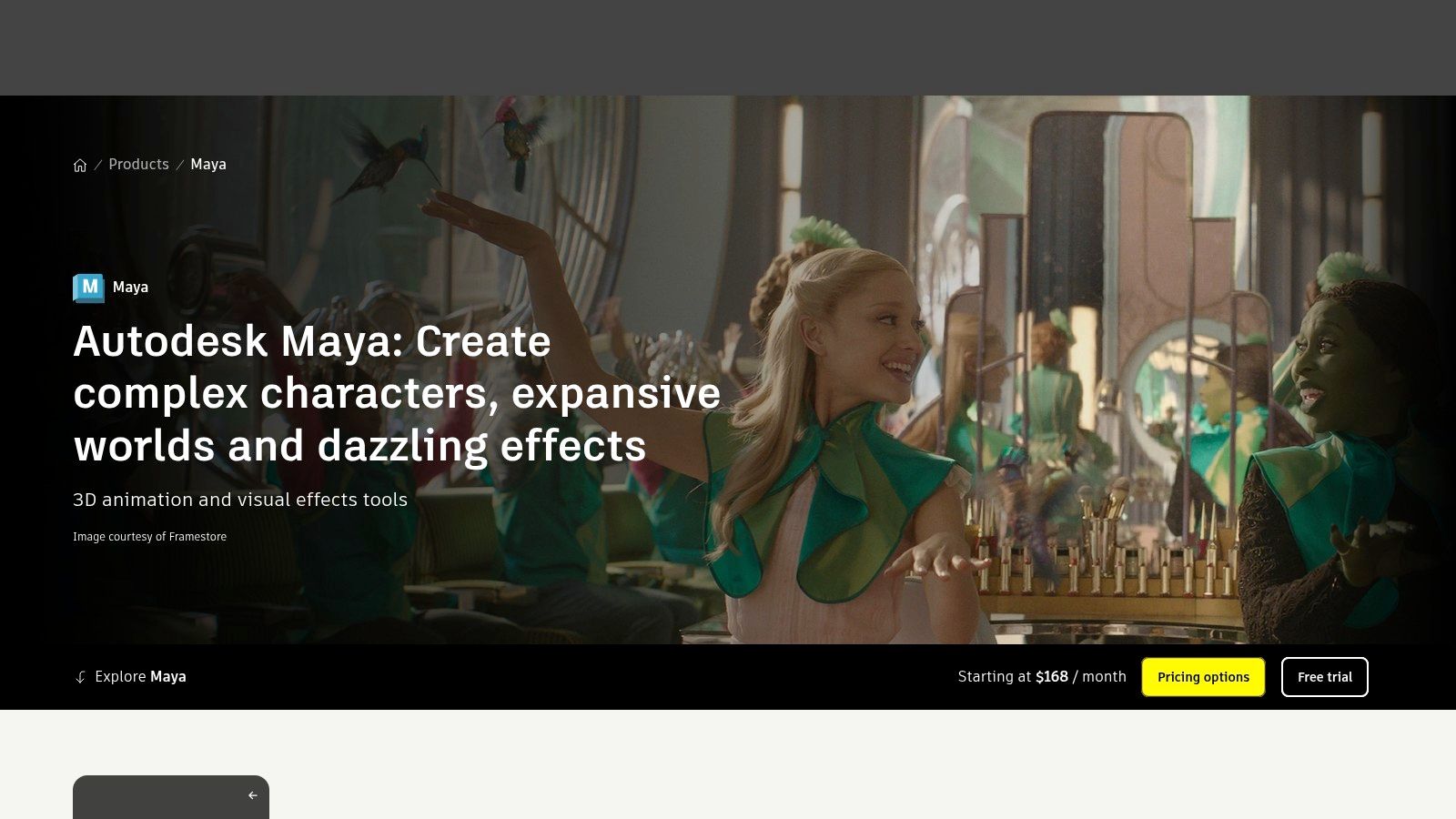
Maya makes most sense when the model must become a rigged, animated production asset. It's less compelling when all you need is a static product image.
Autodesk Maya combines polygon and NURBS modelling, retopology, character rigging, animation, Bifrost procedural effects, Arnold rendering and OpenUSD support. It runs on Windows, macOS and Linux, and Autodesk offers a 30-day free trial through its product page.
The practical strength is continuity. A character can move from mesh cleanup to rigging and animation within the same application. Scripting also lets technical artists build naming checks, export tools and repeatable scene setup.
Autodesk's New Zealand Maya page lists monthly and annual subscriptions, longer subscription terms and Flex access for infrequent use. Check the live NZ quote rather than converting an overseas headline price.
For sculpted characters, test the full route from dense sculpt to retopology, UVs and deformation. A lovely face can still pinch around the mouth when it moves. That's the test that matters, not how impressive the sculpt looks while standing still.
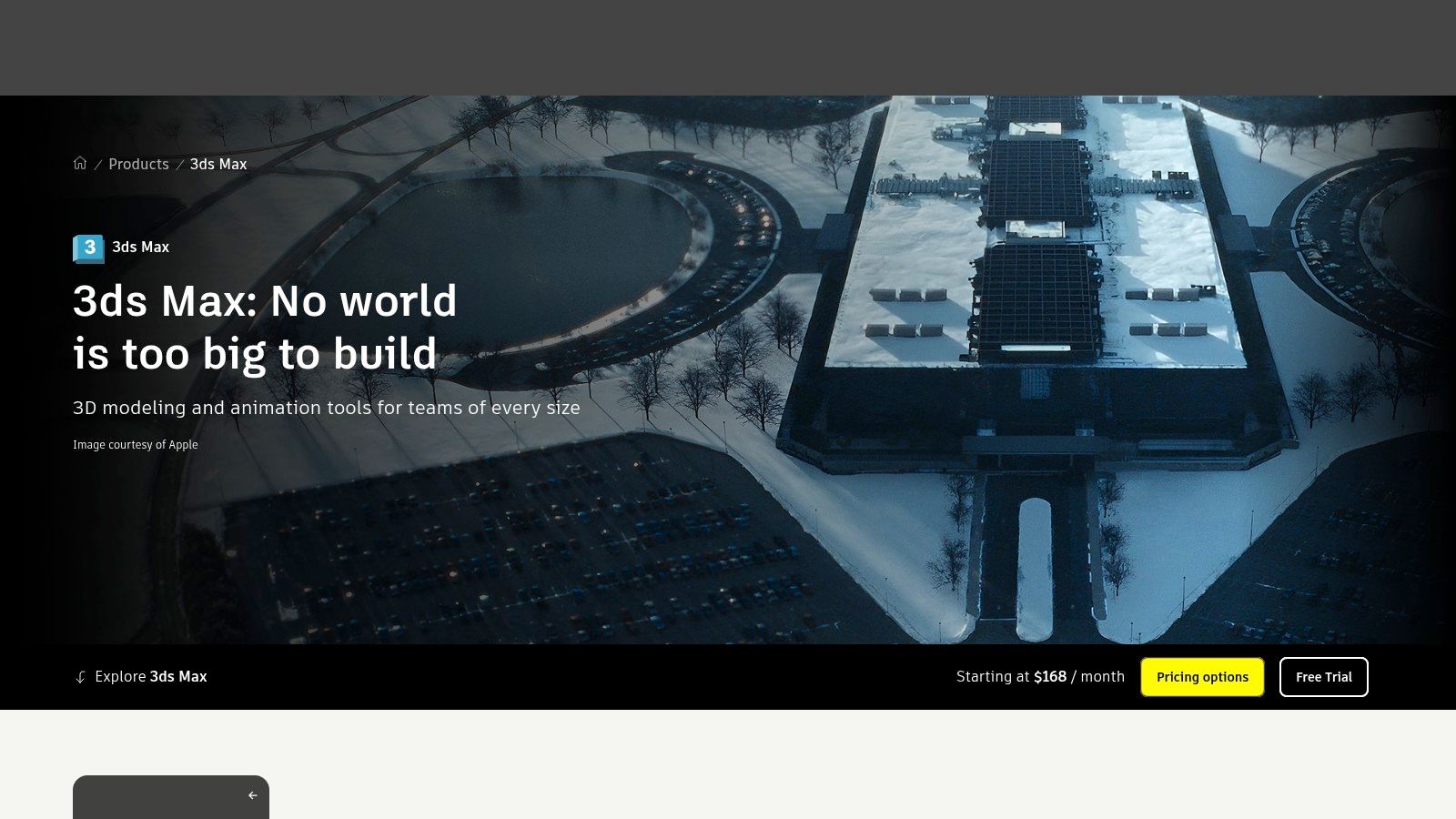
Change the bevel, keep the rest. That's the appeal of 3ds Max's Modifier Stack, which lets you revisit modelling operations rather than rebuild the object from scratch.
Autodesk 3ds Max combines modelling, rendering and animation, with Booleans, retopology tools, Arnold integration, scripting and third-party plugins. It's a Windows application, so a Mac-first team should settle the hardware question before getting attached to the workflow.
For architectural scenes, product visuals, props and environments, editable operations are useful during client revisions. A bend, smoothing step or repeated detail can remain adjustable while you refine the base shape. That flexibility doesn't remove the need for clean geometry, but it makes changes less painful.
A modifier stack is a revision tool, not a reason to leave an unreadable pile of operations for the next artist.
The subscription can be hard to justify for occasional visual work. Plugins may also become part of the production cost, so assess the scene you need to build rather than the base application alone.
Before adoption, exchange a sample scene with your renderer or game engine. Check instances, material conversion, texture paths and scale. For an NZ or AU studio using external contractors, document required plugin versions as well.
Choose 3ds Max when its modelling workflow and visualisation ecosystem fit your work. Don't choose it merely because a polished architectural render was made in it.
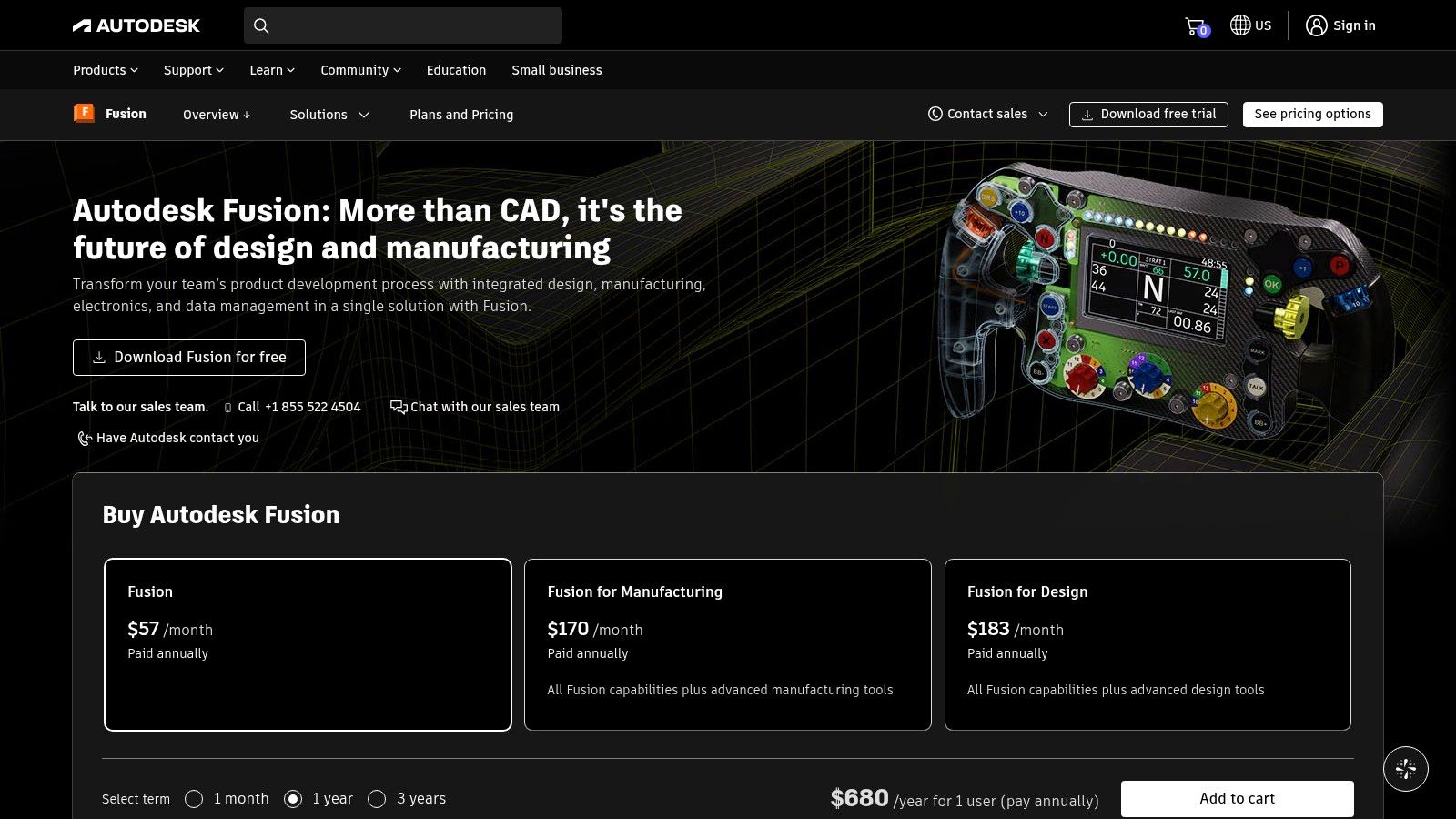
A product enclosure isn't finished when it looks convincing. The board must fit, fasteners need clearance, and someone has to make the thing. Fusion suits teams that need design to connect with engineering and manufacturing.
Autodesk Fusion combines parametric CAD with CAM, CAE and PCB workflows, plus cloud-based collaboration and project management. Windows and macOS users can work in its desktop application. A limited personal-use version is available to qualifying hobbyists for non-commercial work.
Build sketches around design intent. Constrain mounting holes to the features they depend on, and name key parameters such as wall thickness and board clearance. Then test a change before the model gets complicated.
Fusion is more tool than you need for a quick marketing mesh. For a physical product startup, though, editable dimensions and manufacturing handovers matter more than an easy sculpting brush.
Test the supplier's required export before committing. Send a sample solid and a drawing with critical dimensions. Don't assume a file opening successfully means the supplier has everything needed to manufacture it.
Shapr3D is the hands-on CAD choice, particularly if sketching with an Apple Pencil feels more natural than working through desktop menus. It's useful for exploring a product form while keeping the model grounded in solid geometry.
Shapr3D runs on iPad, Mac and Windows. Its tools include constrained sketches, solid modelling, direct edits and history-based parametric workflows. The free Basic plan provides a way to try modelling; Pro adds technical drawings and broader import and export choices.
A tablet workflow can make a design discussion more direct. Move a face, change a section, check the shape. You still need to understand constraints, dimensions and solid construction, so don't mistake a friendly interface for automatic engineering.
Basic has project and export limits. That matters if your first useful handover needs a format or resolution that sits behind a paid tier.
For a founder building hardware, I'd test Shapr3D with a real enclosure rather than a tutorial vase. Add a lid, mounting features and clearance around an internal component. Then change the component size and see how comfortably you can revise the design.
That reveals more than the first pleasant hour of sketching.
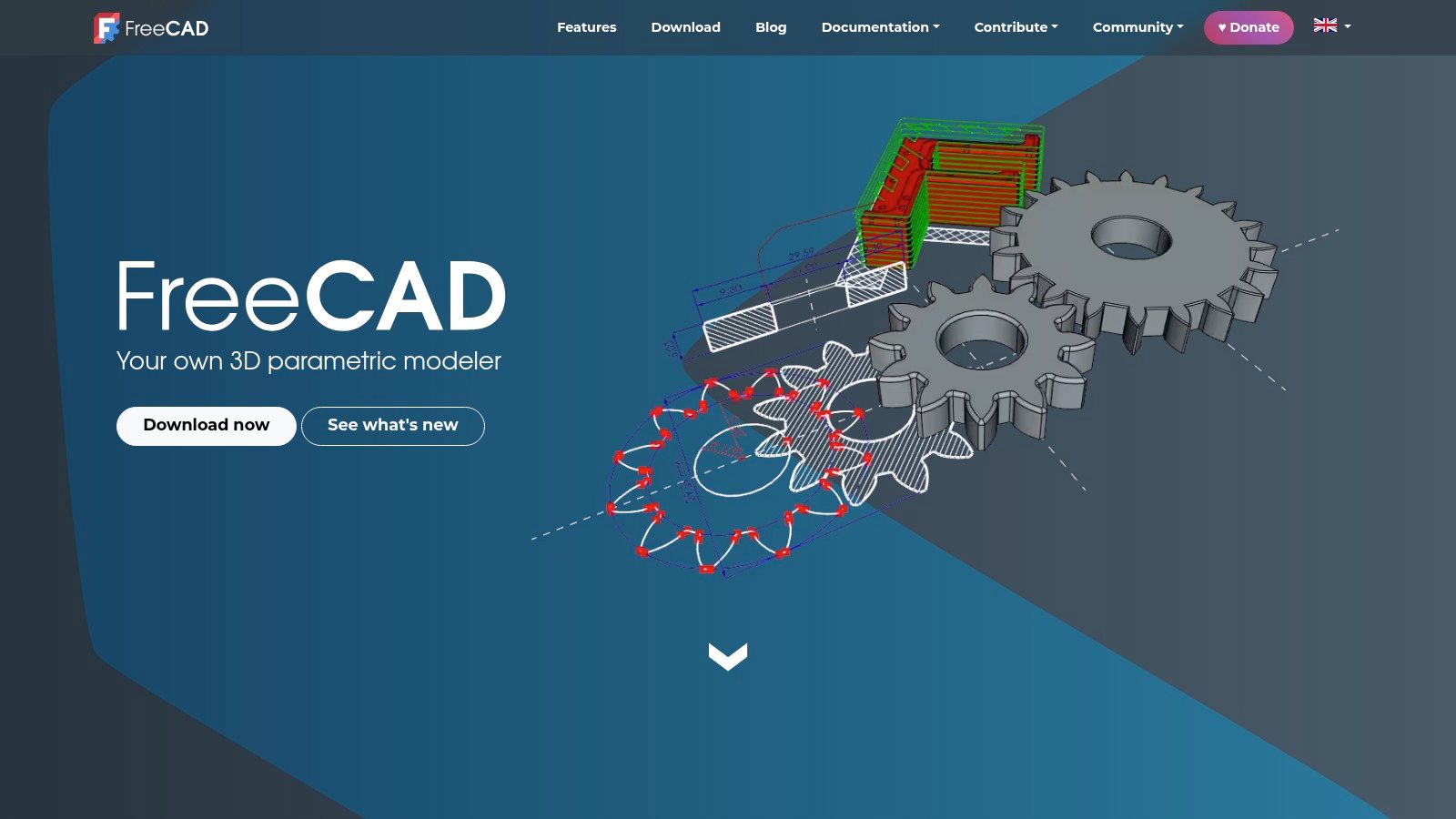
No licence fee, proper dimensions, editable parts. FreeCAD deserves a place on a cost-conscious engineering shortlist, especially when you want local files and an open-source tool.
FreeCAD offers constrained sketches, parametric solids, technical drawings and workbenches for tasks such as BIM, CAM and finite-element analysis. It runs on Windows, macOS and Linux, with exchange formats including STEP, IGES, OBJ and STL.
The modelling approach suits real objects. Sketch a profile, constrain it, create a feature and build from there. If you've only used polygon tools, expect a change of mindset: the relationships between dimensions matter as much as the visible shape.
FreeCAD isn't a free copy of every commercial CAD workflow. Workbenches and community add-ons can differ in polish, documentation and support. Use a stable release for production, and test extensions before a deadline depends on them.
For a simple bracket, create the mounting holes from constrained sketches and give the main dimensions clear names. Change the thickness, reopen the file and inspect the result. Then export it and check it in the receiving tool.
That small exercise tests the whole job. Free software is a good deal when the team can maintain and hand over the model, not merely create it.
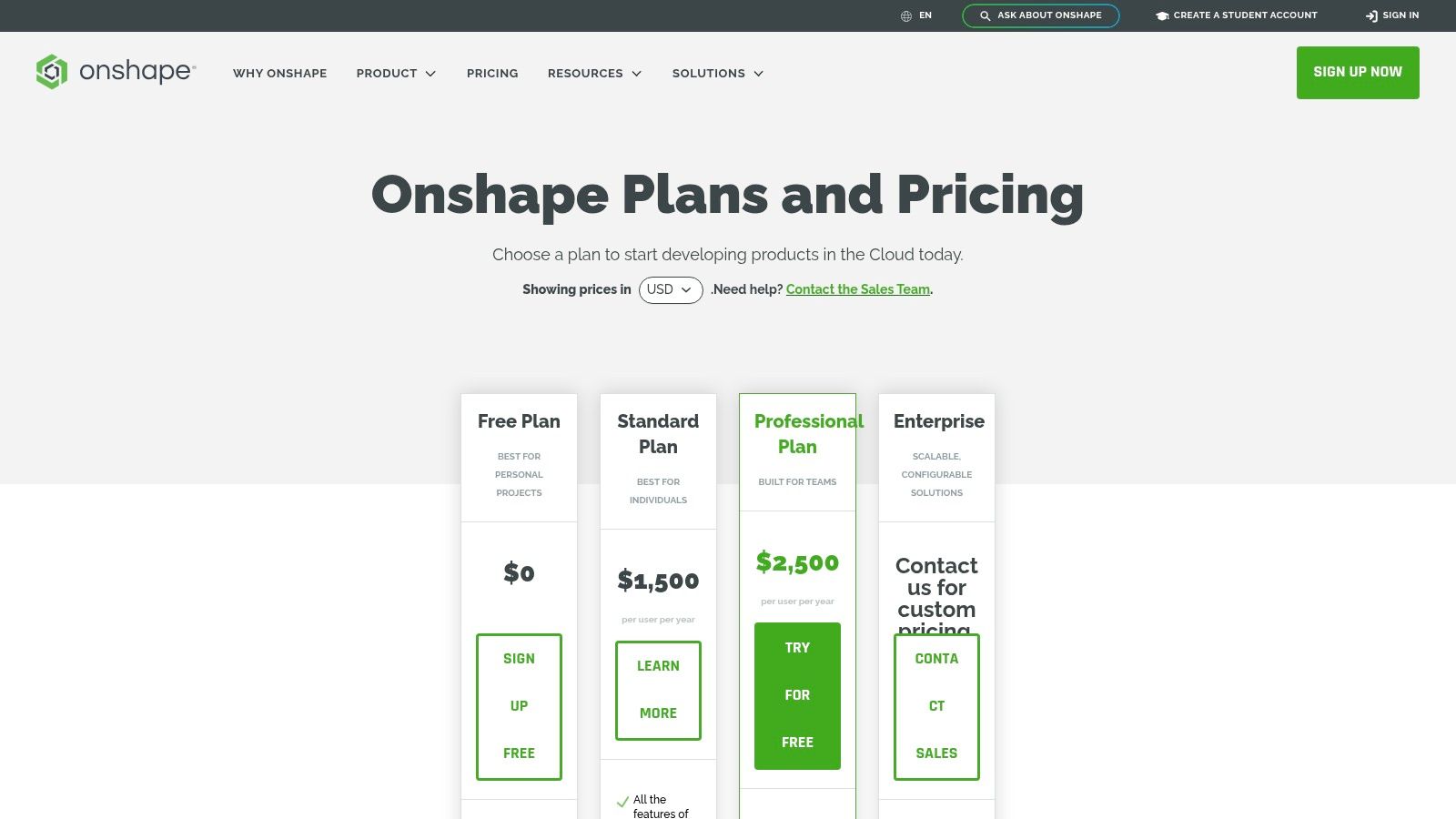
For a distributed product team, emailing CAD files can turn into a guessing game. Onshape suits shared parametric work, where everyone needs access to the current model and a clear version history.
Onshape's plans offer browser-based part and assembly modelling, collaboration and version control, with mobile access also available. There's no conventional desktop installation to maintain. Paid tiers add private data management and team capabilities.
The important catch is commercial, not geometric. Free-plan documents are public, and the free tier is for non-commercial use. Don't put an unreleased customer product into that workspace as a casual trial.
Browser delivery reduces installation chores, but you still need to test your internet connection, browser and devices under real working conditions. Include remote staff, not just the person with the best office setup.
Procurement check: Public documents are not a substitute for a private commercial workspace, even when the modelling tools look sufficient.
For an NZ and Australian team, use the pilot to test reviews across locations. Create a named version, branch a design change, and ask a colleague to find the approved part without a chat message explaining where it went.
Onshape is attractive when shared work and revision control are central. Its paid subscription may be harder to justify for a solo maker who doesn't need those capabilities. Compare the cost against the file-management work you'd otherwise do yourself.
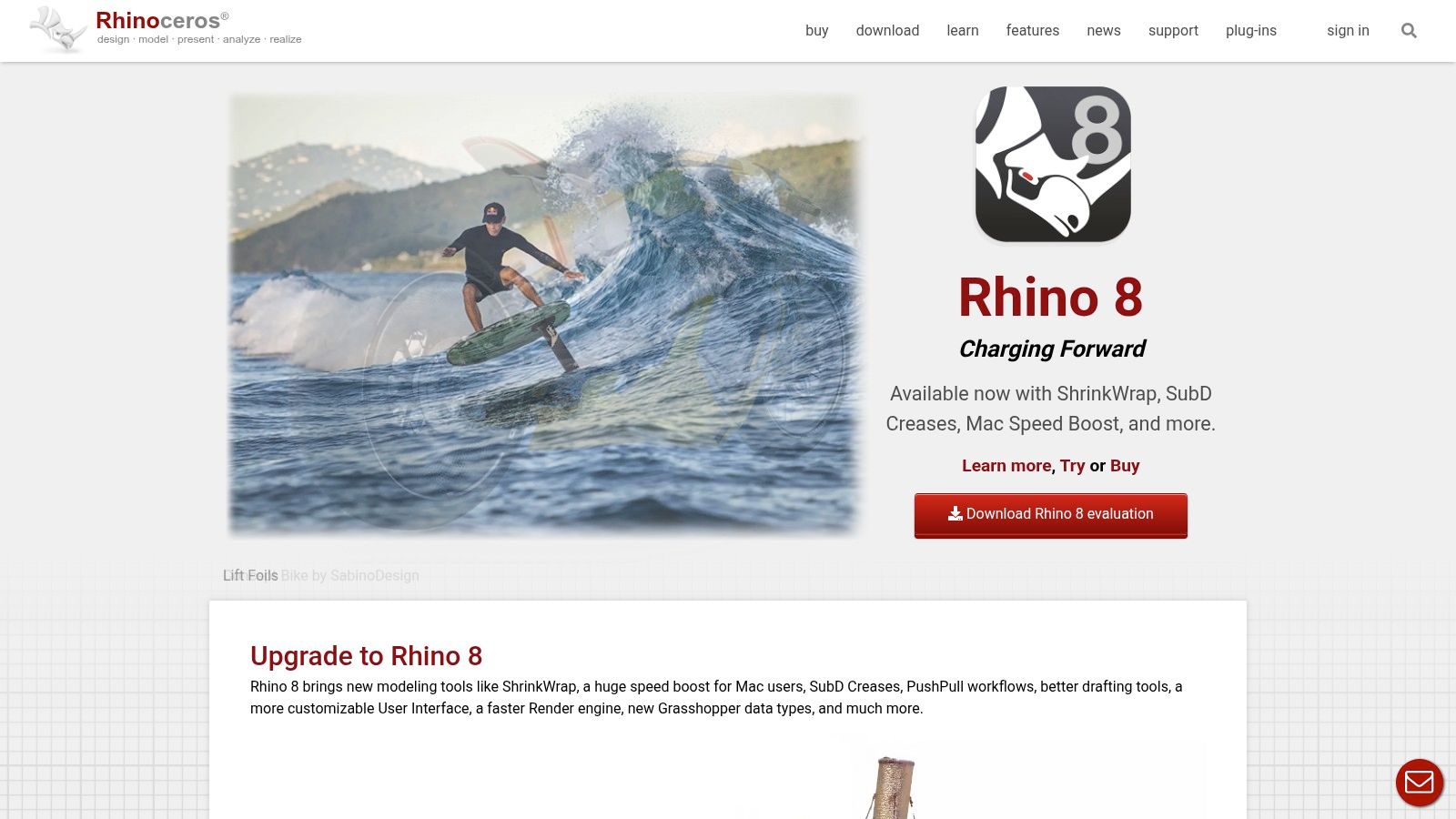
Some forms sit awkwardly between polygon art and tightly constrained mechanical CAD. Rhino is a strong fit for curve-led design, complex surfaces and fabrication work, from jewellery to architectural components.
Rhino combines NURBS, SubD, mesh and solid modelling on Windows and Mac. Grasshopper adds visual programming for rule-based geometry, and Rhino offers a 90-day evaluation alongside a perpetual commercial licence.
That licence model appeals to teams trying to avoid another recurring seat charge. It still requires a sizeable upfront purchase, and you should assess future upgrade needs rather than treating perpetual as meaning no future expense.
Rhino gives you freedom to build unusual forms. That freedom can also produce surfaces that look joined but aren't ready for fabrication. Check edges, joins and closed volumes before exporting.
For a perforated panel, for example, Grasshopper can let you change spacing or hole size without placing each opening by hand. Keep fabrication limits in the definition, not in a note added later.
Rhino's breadth takes time to learn. Start with the modelling method your project needs, then add scripting or visual programming when repetition makes it worthwhile. Building an elaborate definition for a shape you'll never revise can be busywork.
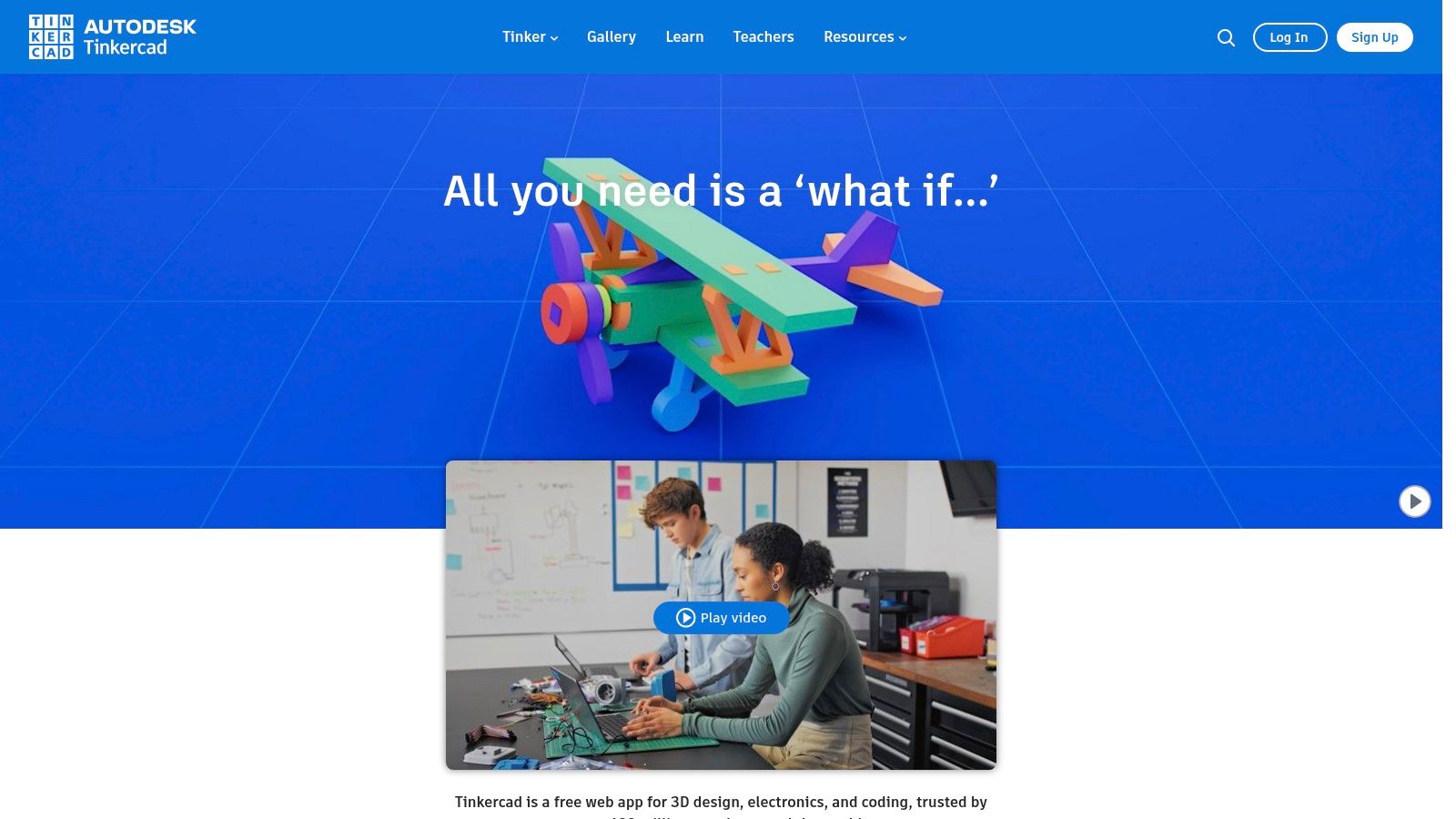
Tinkercad is the low-friction introduction, not the miniature professional CAD package. That's a useful distinction: beginners can learn how solids combine without first learning a dense desktop interface.
Tinkercad is free and runs in a web browser without a software download. It brings basic 3D design, electronics and coding into the same web app, supported by project-based learning resources.
For a founder who needs to explain a rough physical idea, simple shapes may be enough. A block, a cut-out and a mounting tab can communicate the concept better than a long email. Don't confuse that concept with a production-ready part.
Try a cable guide, a label holder or a rough desk accessory. Learn to place objects, set dimensions, subtract shapes and inspect the result from every side.
When edits become repetitive, move to parametric CAD rather than fighting the simple interface. When you need organic forms, textures or animation, try a polygon tool such as Blender.
For NZ and AU teams running internal learning sessions, browser access is handy. Test sign-in, device performance and export access beforehand, though. The easiest tool is only easy if everyone can use it when the session starts.
Which job are you hiring the tool to do? That question sorts this list faster than any feature count. Polygon work, sculpting pipelines, parametric CAD and browser basics each reward a different pick, and licensing and platform fit matter more in NZ and AU where teams mix Mac, Windows and iPad.
| Tool | Best for | Free option | Platforms | Pricing model |
|---|---|---|---|---|
| Blender | All-round 3D creation for independent creators and small studios | Free, including commercial use | Windows, macOS, Linux | Free and open source |
| SketchUp | Architectural concepts, interiors and spatial layouts | Free web version with limited features | Web, iPad and desktop, depending on plan | Paid plans with tiered features |
| Autodesk Maya | Professional modelling, animation, rigging and effects | 30-day free trial | Windows, macOS, Linux | Subscription |
| Autodesk 3ds Max | Entertainment and design visualisation, including environments and product scenes | 30-day free trial | Windows | Subscription |
| Autodesk Fusion | Product design, engineering and manufacturing workflows | Limited free personal-use version for qualifying hobbyists | Windows, macOS, web browser | Free personal-use option, commercial subscription |
| Shapr3D | Tablet-focused CAD and product design | Free Basic plan | iPad, Mac, Windows | Free Basic plan, paid Pro subscription |
| FreeCAD | Parametric CAD and technical design without a licence fee | Free | Windows, macOS, Linux | Free and open source |
| Onshape | Cloud-based CAD and collaborative product development | Free non-commercial plan with public documents | Browser and mobile apps | Free non-commercial plan, paid tiers |
| Rhino | Surface- and curve-based design, fabrication and generative workflows | 90-day evaluation | Windows, Mac | Perpetual commercial licence |
| Tinkercad | Introductory 3D design, electronics and coding | Free | Web browser | Free |
Use the table to shortlist by category. Visual production points to Blender, Maya or 3ds Max. Dimension-led product work points to Fusion, FreeCAD, Shapr3D or Onshape. SketchUp covers quick spatial ideas, Rhino covers curve-led forms, and Tinkercad covers first steps. Then check cost in NZD or AUD, OS support and learning resources before you commit.
Choose the job before the brand. Blender, Maya and 3ds Max belong on a visual-production shortlist; Fusion, FreeCAD, Shapr3D and Onshape deserve attention for dimension-led product work. SketchUp handles quick spatial ideas, Rhino suits curve-led and rule-based forms, and Tinkercad gives beginners a gentle start.
Then define what finished means. An animation asset needs clean deformation and a reliable engine or rendering handover. A manufactured part needs dimensions, suitable geometry and clear production requirements. A building model may also need useful component information, not just convincing walls.
New Zealand's BIM survey published in 2020 found that 73% of industry respondents used BIM during early contractor involvement. That's a useful reminder to involve downstream users while choosing software, rather than after the team has committed.
Ask your animator to open the exported asset. Send the solid model to your fabricator. If additive manufacturing is the next step, compare your intended output with the requirements of industrial 3D printing services. Inspect units, wall thickness, closed geometry and critical features.
AI-generated geometry deserves the same scrutiny. Treat it as an input to review, not proof that topology, dimensions, rights or manufacturability are sorted. A quick starting shape is helpful only if you can finish it safely.
Check NZ pricing, GST treatment, billing currency and platform support before committing a team. Australian operators should check their local checkout too. Add the renderer, essential plugins, storage and training to the comparison, rather than counting only the modelling subscription.
Free tiers need the same care. Confirm commercial-use rights, privacy, export formats and project limits using a real task. For local learning, check current polytechnic and university short courses, fabrication labs and user groups, then ask whether they teach your chosen workflow and software release.
At NZ Apps, we help New Zealand and Australian founders find practical software, local tech context and tools for running email campaigns. Our SaaS Pricing Models: A Practical Guide for NZ & AU Founders provides context for subscription-heavy stacks, and our Get a Quote button is available to visitors comparing builds.
Run a one-week pilot with your top two tools before choosing. Use the same real deliverable, make a late design change, export it and have the next person open it. Choose the tool that gets the whole job done with the least avoidable friction.
Visit NZ Apps for practical software guides and a curated directory of app and tech companies across New Zealand and Australia. Use our local coverage to assess the wider stack around your 3D workflow, and use Get a Quote if you're comparing software builds.
Add your NZ or Australian app or tech company to the NZ Apps directory and get discovered by founders and operators across the region.
Get ListedReach tech decision-makers across New Zealand and Australia. Sponsored and dofollow editorial links, permanent featured listings, and sponsored articles on a DA30+ .co.nz domain.
See Options