
You've got a working demo, a launch target and a quote that looks manageable. Then someone asks who holds the signing keys, whether the app runs on an older Samsung, and how you'll ship a fix when the contractor's away. Suddenly, picking Flutter or Swift feels like the easy bit.
A mobile app development environment is more than the software on a developer's laptop. It's the working system that lets your team build, test, release and support the product. For NZ and AU founders, the sensible choice is the one you can staff and maintain, not just the one that gets the first demo out the door.
A workshop's bench, saws and clamps don't build the chair. But nobody builds a good chair without them. App tools play the same role: they give skilled people a safe, repeatable way to turn an idea into something customers can use.
Your development environment includes the tools, services and settings used to write, test, sign, release and maintain an app. It starts with source code and reaches through to the store listing, crash reports and the next update.
Say you're building a booking app. A developer writes the booking screen, tests a failed payment, creates an installable build and sends it to your pilot group. Each task needs a different layer of the environment.
Components of a mobile app development environment
| Component | What It Does | Common Examples |
|---|---|---|
| IDE | Writes, edits and debugs code | Xcode, Android Studio, VS Code, JetBrains IDEs |
| SDKs | Platform libraries and build tools | iOS SDK, Android SDK |
| Languages | Source code for the app | Swift, Kotlin, Dart, TypeScript |
| Frameworks | Shared structure for UI and logic | SwiftUI, Jetpack Compose, Flutter, React Native |
| Emulators and simulators | Run builds without a physical phone | Xcode Simulator, Android Emulator |
| Device labs | Test on real hardware | In-house phones, cloud device farms |
| CI/CD | Build, test and sign on every commit | GitHub Actions, Bitrise, Codemagic, CircleCI |
| Testing | Automated checks at unit, UI and device level | XCTest, XCUITest, JUnit, Espresso |
| Deployment | Distribute builds and publish releases | TestFlight, App Store Connect, Google Play Console |
The IDE, or integrated development environment, is where developers spend much of their day. The SDK, or software development kit, provides platform libraries and build tools. A framework adds structure, but it doesn't replace the SDK beneath it.
The layers fit together like this:
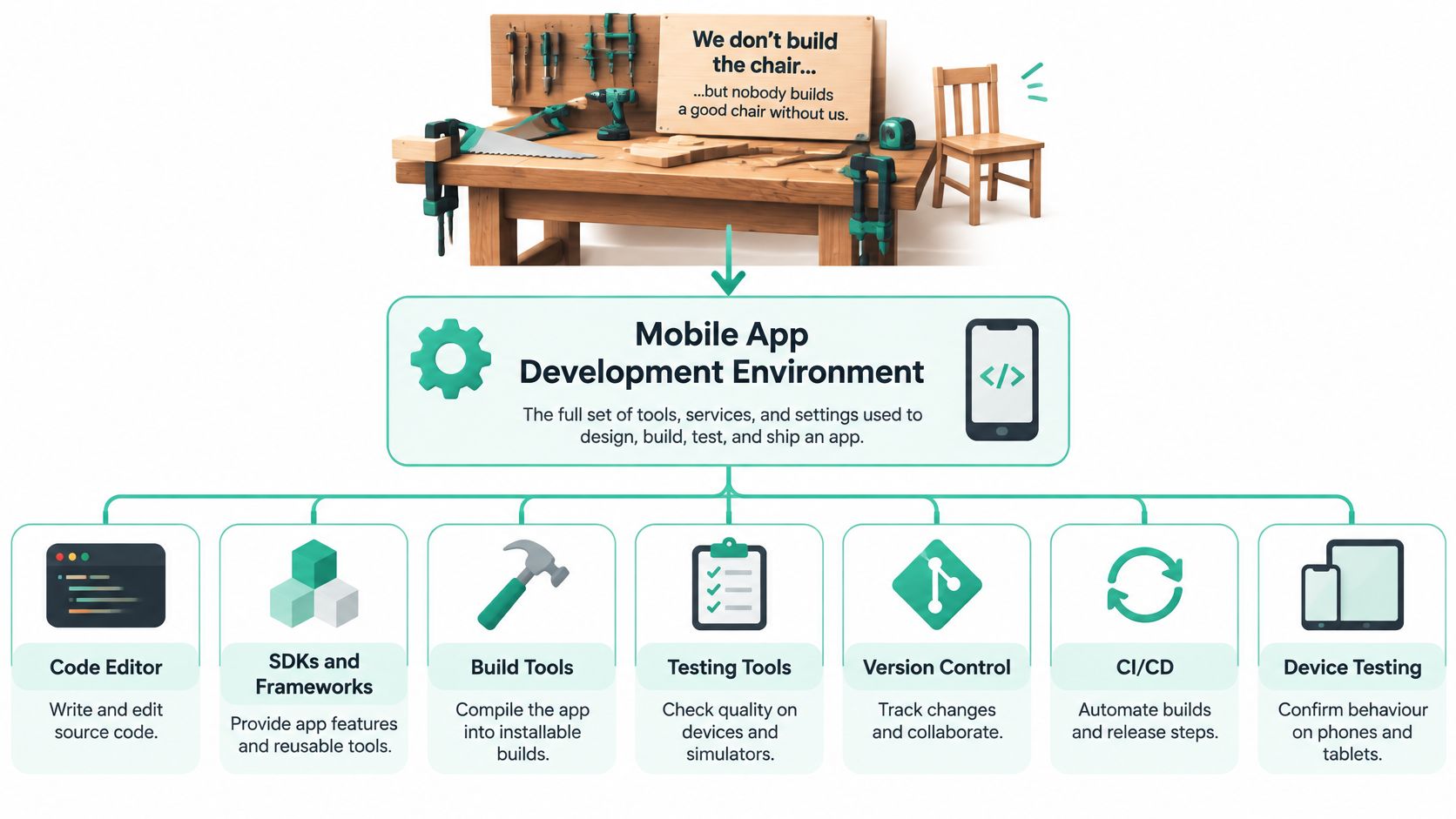
Xcode runs only on macOS. A team using Windows or Linux still needs a Mac, either its own machine or a cloud Mac runner, before it can build for iOS. Check that before you approve the hardware and hosting budget.
Version control belongs here too. Keep application code, build settings, dependency lockfiles and pipeline configuration in Git, while keeping secrets out. Record the tool versions so a new developer can recreate the setup without guessing.
Separate development, test and production services. A test build should never send trial payments to the live payment account or fill a customer's inbox with test notifications.
Practical rule: If a release works only from one person's laptop, you don't yet have a repeatable environment.
A missing layer rarely announces itself at the start. You notice it when tests fail at random, releases drag on, or nobody can reproduce the build that reached customers. Tick off the layers your team already owns, then name an owner for each gap.
| Approach | Typical Tools | Main Strength | Main Trade-off |
|---|---|---|---|
| Native | Swift and SwiftUI; Kotlin and Jetpack Compose | Full access to platform APIs and new features | Two codebases and two specialist teams |
| Cross-platform | Flutter (Dart); React Native (TypeScript); .NET MAUI (C#) | One shared codebase for most screens and logic | Plugin gaps and platform-specific code still needed |
| Hybrid | Ionic with Capacitor | Web skills reused; fast for content-led apps | Weaker for heavy graphics, background tasks and smooth animation |
| Low-code | FlutterFlow; Adalo | Fastest route to a working prototype | Limits on custom logic and exit costs if you migrate later |
The table gives you a starting point, not a winner. A stock-tracking app and a live camera tool may share a login screen, yet need quite different foundations.
Native development means using the platform's own tools and UI frameworks. Swift with SwiftUI serves iOS; Kotlin with Jetpack Compose serves Android. You can work directly with platform APIs without waiting for a third-party wrapper.
That matters when the product leans hard on device features, precise background behaviour or demanding interactions. The price is separate implementation work and specialist ownership for each platform. Those specialists can sit in one small organisation, but you still need both skill sets.
Native isn't a guarantee of good performance or sound security. A poorly designed native app can still freeze, leak data or drain the battery. Direct control helps only when the team knows what to do with it.
Flutter, React Native and .NET MAUI let teams share much of their screen code and business logic. That can suit account-based products, booking flows, forms and subscription services. You change a shared rule without manually recreating it in separate projects.
The awkward work sits at the edges. Camera access, notifications, payments and background tasks may need native code, plugin fixes or platform-specific tests. Before committing, use this cross-platform mobile app development guide to frame the approach, then build a technical spike around your hardest feature.
Check plugin ownership, release activity and open issues during that spike. A polished demo tells you little about what happens when the operating system changes.
Ionic with Capacitor lets a web team package web interfaces in a native shell and reach device features through plugins. It can be a sensible fit for content, forms and internal workflows. Heavy animation or sustained background work needs closer scrutiny.
If you're sorting out what the native shell handles versus what a deployment service provides, LetsDeployIt's guide to Capacitor differences is a useful comparison resource. Keep packaging, device access and release tooling separate in your evaluation.
Low-code tools such as FlutterFlow and Adalo can get a working prototype into users' hands quickly. Yet a prototype tool becomes a product dependency once customers rely on it. Test custom logic, source export, automated testing and data access before the team builds around it.
Choose the approach that makes your hardest product requirement manageable, not the one that makes the login screen quickest.
Start with people, not framework rankings. Who can fix the app when its original author leaves?
Kombee's cross-platform development article reports 570 NZ mobile developers associated with 1,952 apps through January 2025. That's an industry source's count, not a complete workforce census, but it's a useful prompt to check your hiring assumptions rather than borrow them from a much larger market.
Check Flutter, Swift and Kotlin availability separately. Ask who can review native changes, who can take over a release, and whether your contractor will hand over build access and documentation.

Score each criterion from one to five for each candidate stack, with a higher score meaning a better fit for your product. Treat the scores as a discussion tool, not a mathematical verdict.
Stack selection scorecard
| Criterion | Question to answer | Warning sign |
|---|---|---|
| Talent | Can we hire or keep Flutter, Swift and Kotlin people locally? | Only one contractor knows the codebase |
| Time-to-market | Does one codebase save screens, or will rework eat the saving? | The team lacks the skills to avoid rework |
| Five-year cost | What do support, plugin upgrades and specialists cost after launch? | Only the first build quote has been priced |
| App store rules | Can a framework update hold a release hostage? | A release depends on a plugin with no update path |
| Device coverage | Do older and lower-end phones still run the app well? | Testing happens only on the newest flagship |
| Privacy | How does regulated personal data flow through third-party SDKs? | Nobody has listed the SDKs in use |
Time-to-market depends on the team you have. A strong React Native team may ship shared screens with little fuss; a team learning the framework while wrestling with Bluetooth may spend its saving on rework.
For five-year cost, ask for separate estimates for routine support, platform upgrades, dependency changes and specialist work. Include contractor handover and the cost of replacing a maintainer. A cheap quote with no allowance for upkeep isn't a cheap operating plan.
App store review timing, in-app purchase requirements and framework dependencies can affect release plans. Ask the team to trace your payment flow against store rules before building it, and to show a fallback if a critical plugin stops receiving updates.
Test the proposed stack on an older, lower-resource phone and a poor connection. For a field-service app, a failed upload with no recovery path matters more than a lovely transition on office Wi-Fi.
Privacy needs the same practical treatment. Map personal data through analytics, crash reporting, payment and messaging SDKs, then assess the product's Privacy Act 2020 obligations with suitable advice. An AU launch also needs its own legal review; don't assume an NZ assessment covers it.
Choose the highest-scoring stack only if its weak points are acceptable. A strong average can hide a deal-breaker, especially around health data, hardware access or sole-contractor dependence.
| Android setting | What it controls | Practical setup |
|---|---|---|
compileSdk |
The platform APIs available when compiling | Build against the latest Android SDK |
targetSdk |
The platform behaviour the app targets | Target the current SDK and test behaviour changes |
minSdk |
The lowest device API level allowed to install | Set an explicit floor based on user and support needs |
These settings do different jobs. Google's core app quality guidance recommends building with the latest SDK, targeting the current SDK and testing on the latest public Android version; Android blocks installation on devices below android:minSdkVersion.
A successful compile doesn't prove the app works for customers. Set the minimum supported API using product analytics, dependency support and security needs, rather than a developer's preferred test phone.
The September 2026 snapshot in Statcounter's NZ Android version breakdown records Android 16 at 58.59%, Android 15 at 12.21%, Android 13 at 8.63%, Android 14 at 7.27% and Android 12 at 4.92%. Treat that as a dated planning snapshot, not a permanent description of your audience.
For a product serving a similar audience, use Android 16 and 15 for primary checks, then include Android 14, 13 or 12 for regression coverage. Always test the minimum API you support, even if it sits outside the main group.
Use Android Virtual Devices for relevant screen sizes and software combinations. Add a physical Samsung and lower-memory hardware where battery limits, camera behaviour or process handling matter. For iOS, include a current and a previous iPhone, plus a device running your minimum supported system where practical.
| Test target | What to check |
|---|---|
| Minimum supported API | Installation, launch, login and core workflow |
| Current platform release | Permissions, notifications and changed system behaviour |
| Lower-resource physical phone | Startup, memory pressure, scrolling and recovery |
| Small and large screens | Layout, keyboard overlap and readable text |
| Interrupted connection | Retries, duplicate actions and saved progress |
A UI test can confirm that a button responds without showing whether someone understands it. Use Uxia's guide to mobile usability testing to plan task-based sessions, such as booking an appointment or recovering from a failed checkout.
Keep repeatable technical checks in your mobile app testing automation workflow. Reserve hands-on testing for touch feel, camera use, accessibility, awkward network changes and other behaviour that scripts may miss.
Try denying permissions, enlarging text and moving the app into the background during a key task. Check that a screen reader announces controls in a sensible order and that errors explain what to do next.
After release, track crash-free sessions and ANRs, or application-not-responding events, by Android version. An overall healthy result can hide a broken experience for a smaller group. Use that detail to decide what to fix, what to roll back and when to revise support.
A release pipeline should produce the same traceable build from a known commit, whether the team is in Auckland, Wellington, Sydney or working remotely. The setup takes time, but it reduces manual release work and makes problems easier to trace.
A practical pipeline moves through these checks:
Apple's current TestFlight tester and build limits set the boundaries for pilot access and how long a build remains available. Plan invitations and testing windows within those limits rather than promising an open-ended test build.
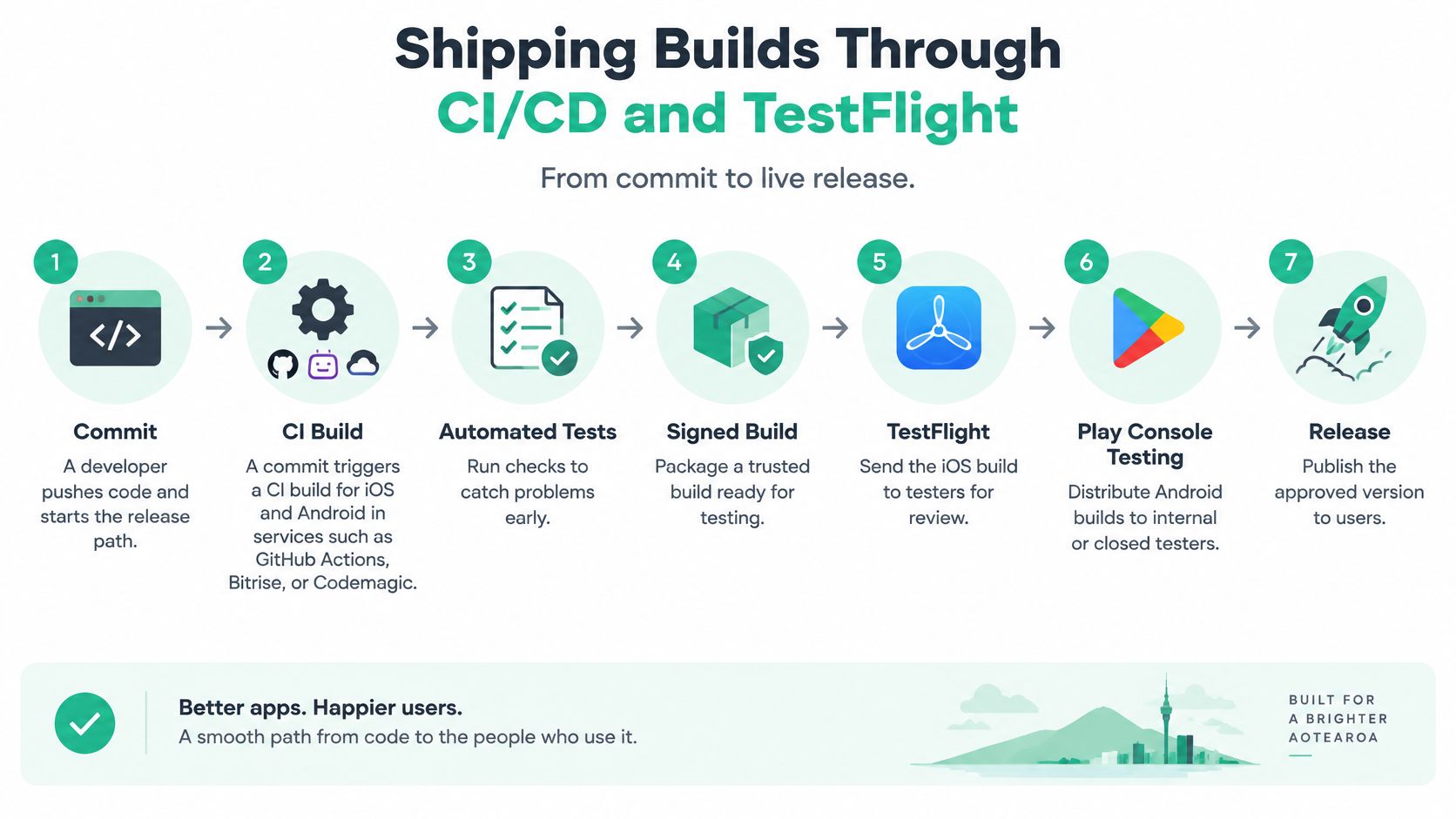
Signing can stall a release if access belongs to one person instead of the business. Store credentials in protected CI secrets, restrict release permissions and document how to renew or replace them. Never commit signing material to the repository.
Store metadata needs an owner too. Prepare screenshots, privacy declarations, review notes and working reviewer credentials before submission. Use a Google Play submission checklist to keep Android publishing tasks visible and assigned.
A green build means the pipeline passed its checks. It doesn't mean a store reviewer, tester or customer has approved the experience.
Review queues, expired certificates and missing metadata can all delay a release. Tag the source commit, retain the build record and make sure the team can identify exactly which version testers received.
TestFlight is a testing channel, not an App Store release. Keep beta feedback separate from public launch approval, and set launch dates with review time in the schedule.
A small release today can leave a large maintenance bill by year three. Keep the environment running as product work: platform tools change, dependencies need attention and every supported operating system adds testing work.
Schedule Xcode upgrades, SDK reviews and submission-rule checks. Allow time to run regression tests and fix problems before a release. Apple's submission guidance currently describes Xcode 27 and an announced April 2027 requirement for uploads to use the iOS and iPadOS 27 SDK or later and target iOS 15 or later. Check Apple's live requirements when planning a release, since platform rules change.
Supporting older operating systems keeps the app available to more customers, but adds test cases and can limit dependency choices. Set a support policy, review actual usage and tell customers about changes before an update leaves them unable to use the app.
Security work needs a place in the same calendar. MBIE's report on business digital capability identifies information and security concerns as a barrier to greater digital adoption for 32% of respondents. Treat security as ongoing product work:
Moving a React Native or Flutter product to native code can make screen rebuilding the easy part. Replacing plugins, preserving stored data and running parallel test suites may take more effort.
Migrate around clear boundaries. Keep API contracts stable, test existing user accounts and prove upgrade behaviour before replacing the whole app. A technical tidy-up without those checks can leave customers facing account or data problems.
Before approving another feature, ask who owns security and upgrades through year three. Put a name, budget and cover arrangement beside that responsibility.
Get the foundations in place this week. A polished screen can wait until the team can build and distribute it safely.
Ask prospective delivery partners to demonstrate a test release from a clean checkout, rather than show slides about their process. Your mobile app development environment is ready when a new hire can clone the project, build it and ship a test build without asking anyone for help.
NZ Apps offers practical tech coverage and a curated directory of app and technology companies across New Zealand and Australia. Visit NZ Apps to research potential development partners and compare their stack experience before discussing your build, release process and ongoing maintenance needs.
Add your NZ or Australian app or tech company to the NZ Apps directory and get discovered by founders and operators across the region.
Get ListedReach tech decision-makers across New Zealand and Australia. Sponsored and dofollow editorial links, permanent featured listings, and sponsored articles on a DA30+ .co.nz domain.
See Options